GO Ultra FunCam Case Kit

$129.95

Shipping calculated at checkout.

Launch Reward: Get Your Kit for Free
Order by Jul 10, 2026 | 11:59 PM PDT to win full kit value back

Go Ultra FunCam Case Kit Launch Reward Rules

  1. This launch reward is available to customers who purchase the Go Ultra FunCam Case Kit on the PGYTECH official website during the first month of launch.
  2. Each eligible order will automatically receive one entry. No additional registration is required.
  3. After the campaign ends, at least one eligible order will be randomly selected. The selected customer will receive a PGYTECH Gift Card or Store Credit equal to the paid value of the Go Ultra FunCam Case Kit, excluding shipping fees, taxes, and any refunded amount.
  4. The reward will be issued within 15 days after the winner announcement, once delivery of the selected order has been confirmed.
  5. The reward can be used on a future purchase on the PGYTECH official website. It cannot be exchanged for cash, transferred, or applied to the original order.
  6. Canceled, refunded, returned, fraudulent, or abnormal orders are not eligible. If the selected order is refunded or returned after the reward has been issued, PGYTECH reserves the right to cancel the reward, void any unused balance, or request the return of the reward value.
  7. The selected customer will be contacted via the email address used for the order. Winner information may be announced on this product page or related campaign pages in a privacy-protected format, such as first name, country/region, or partial order number.
  8. Customers may be invited to share honest product feedback after receiving the product. Providing a review is voluntary and does not affect reward eligibility.
  9. PGYTECH reserves the right to modify, suspend, or cancel this campaign if necessary.
Type
Quantity
Description
  • Modular design: FunCam case works alone or snaps onto photo printer for instant prints;
  • Front-mounted convex mirror enables perfect selfie framing – no more blind shooting;
  • Real-time status indicator shows print progress; USB-C charging keeps you powered on the go;
  • 16.7M color gamut & 300dpi dye-sublimation printing with auto lamination – vivid, fade-resistant photos;
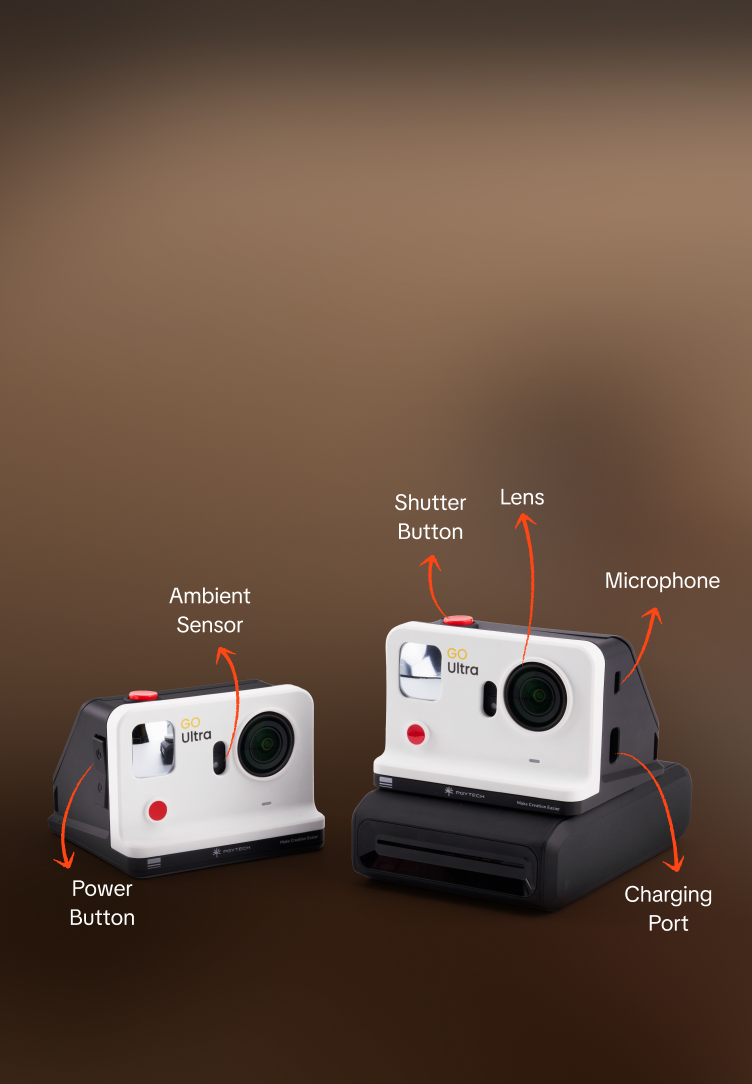
  • Precision cutouts fully preserve camera functions (lens, mic, sensors);
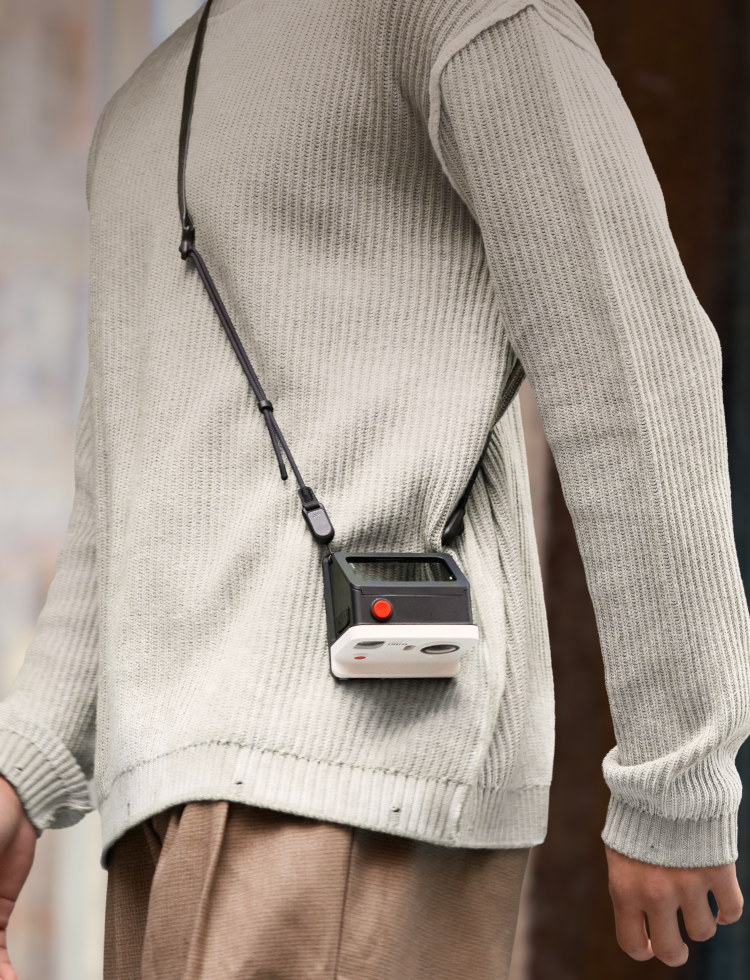
  • Dual attachment points for lanyard/shoulder strap, plus soft-touch coating for a comfortable grip.
Specs
Compatibility
Insta360 GO Ultra

GO Ultra FunCam Case Kit

$129.95

Modular Design,
Instant Prints

The Go Ultra FunCam Case can be used alone or
with its photo printer
to seamlessly switch between
daily documentation and creative fun.
The smooth, flexible inner lining ensures scratch-free mounting and removal.
The magnetic quick-release mechanism instantly clicks into place,enabling fast, efficient setup.
The bottom quick-release directly connects to the photo printer.Shoot and print instantly, and enjoy your creations.

Goodbye Blind
Shooting,
Hello Perfect Selfies

The front-mounted mirror gives you a clear view of your selfie framing, making composition effortless and helping you nail perfect shots every time.

Visible Printing
Progress,
Total Peace of Mind

The real-time status indicator light lets
you monitor print progress at a glance.
The printer's high-precision mechanism
provides smooth, jam-free paper feed,
ensuring dependable results with every print.
Preview before you print – no wasted prints, no wasted photo paper.
USB-C charging keeps you powered up and ready for your next adventure.

Colorful Memories
Pop on Paper,
Vivid and Lasting

With a wide 16.7 million color gamut for
true-to-life color reproduction;
300 dpi high-definition printing,
every precious moment is beautifully preserved.
The automatic lamination process keeps images
dustproof and fade-resistant—your photos stay crystal
clear and colorful for generations!

Details Crafted
with You in Mind

Finished with a soft-touch coating for a smooth,
comfortable feel.

In The Box

PGYTECH GO Ultra FunCam Case

P-GM-446
PGYTECH GO Ultra FunCam Case Kit

P-GM-447
PGYTECH GO Ultra FunCam Photo Paper

P-GM-448

Specifications

GO Ultra FunCam Case Dimensions 84*83*63mm / 3.31 × 3.27 × 2.48 in
Printer Dimensions 4.92 × 3.31 × 1.44 in (including cold shoe)
GO Ultra FunCam Case Weight 120g / 0.26lb
Printer Weight 318g / 0.70 lb
Print Mode Dye-Sublimation
Photo Paper Size 54*82mm / 2.13 × 3.23 in
Compatible Product Insta360 GO Ultra

GO Ultra FunCam Case Kit FAQ

What are the specific dimensions and weight of the product?

GO Ultra FunCam Case Weight:120g /4.23oz

GO Ultra FunCam Case Dimensions:84*83*63mm / 3.31 × 3.27 × 2.48 in

Printer Weight:318g/11.2oz

Printer Dimensions:125 × 84 × 36.7mm/4.92 × 3.31 × 1.44in (including cold shoe)

What material is the product made of?

It is made of PA+GF composite material, which offers high strength, excellent dimensional stability, strong impact resistance, and lasting durability.

What scenarios is it suitable for?

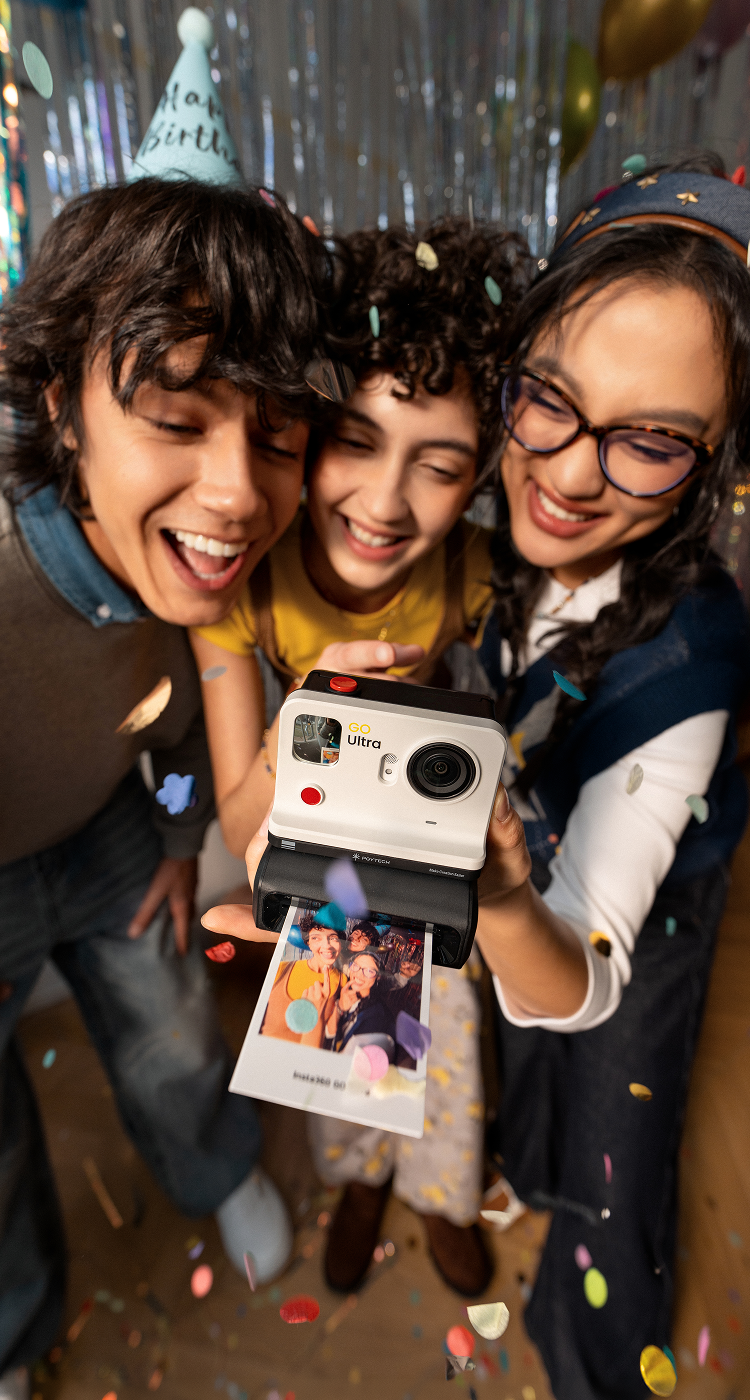
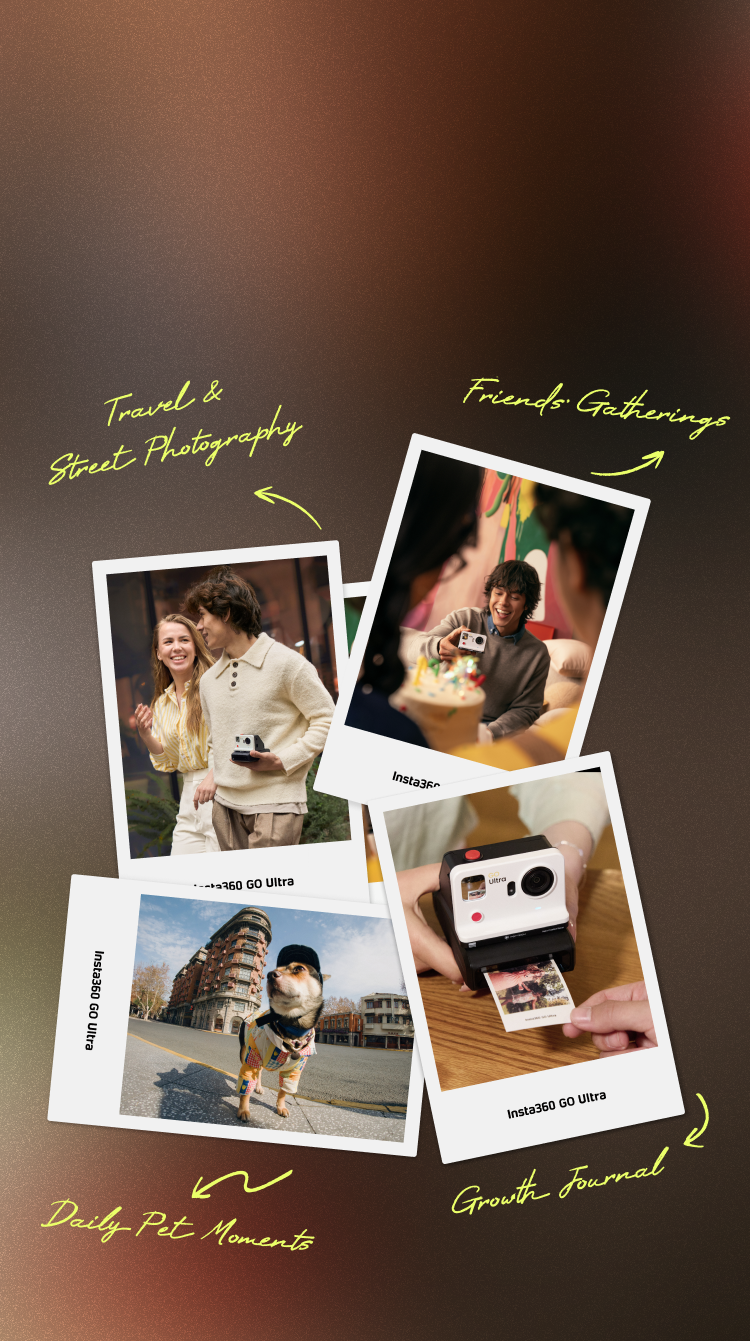
It is suitable for a variety of scenarios, including daily recording, travel photography, street photography, vlog creation, and sharing at gatherings or parties.

What connection methods does the device support? Is it compatible with Android or iOS systems?

The device uses Bluetooth for connectivity and is compatible with Android and Apple operating systems (iOS).

Do I need to download an app? How do I pair the printer to the Insta360 camera or mobile phone? What are the specific steps for printing?

The printer can be paired via Bluetooth either directly to the Insta360 GO Ultra camera or through the Insta360 App.


Direct Print from Insta360 GO Ultra:

1.Load a pack of photo paper, then press and hold the printer's power button to turn it on.

2.On the Insta360 GO Ultra screen, swipe down from the top to open the Quick Menu → tap Bluetooth → select “Pocket Printer”.

3.Go to the camera's “Album” and choose the photo you want to print.

4.Tap “More” (upper right corner), select “Print," confirm, and wait for the printing to finish.


Print using the Insta360 App:

1.Turn on Wi‑Fi and Bluetooth on your phone.

2.Open the Insta360 App → tap“My”(lower right corner) → Pocket Printer → Connect.

3.Go to “Pocket Printer” → Print Photos.

4.Select the photo source (camera files / downloaded files / phone album), edit if desired, then tap “Start Printing”.


App Download & Installation:

iOS: Search for “Insta360” in the App Store and download.

Android: Go to the Insta360 official website download center to get the installation package; or scan the QR code on the camera startup screen or the accessory box QR code to download.

How many devices can be connected to the printer at the same time? Does it support simultaneous printing by multiple users?

The printer only supports connecting to one device (either a camera or a phone) at a time. Simultaneous printing by multiple users is not supported.

How long does it take to print one photo? How many photos can be printed continuously on a full charge?

The printing time for one photo is about 1 minute. On a full charge, it can print approximately 20–25 photos continuously.

How do I turn the printer on/off, change the paper, clear a paper jam, or restart/reset to factory settings?

Power On/Off & Bluetooth Reset:

Power On/Off: Press and hold the power button for about 5 seconds.

Reset Bluetooth: Press and hold the power button for about 3 seconds.

Clearing a Paper Jam:

1.If a paper jam occurs during printing, stop printing immediately and turn off the printer.

2.Open the paper compartment door, locate the paper jam, and carefully remove the stuck paper. Do not pull forcefully, as this may damage internal components.

3. Check whether the paper is creased or deformed. If it is, replace it with a new sheet.

4. Reload the paper, close the compartment door, restart the printer, and resume printing.

Replacing and Loading Paper:

1. Open the paper compartment door.

2. Take a new pack of photo paper and slide it into the compartment.

3. Press the area marked “PUSH”until you hear a click, indicating it is locked in place.

4. Close the paper compartment door. Paper replacement is now complete.

What is the photo print size? What types of photos can be printed?

The paper size is 82×53mm/3.22×2.08in. The printer supports printing camera photo files, Insta360 App photos, and images stored on your phone.

Does the printer require special paper? Where can I buy it?

Yes, the printer requires PGYTECH GO Ultra FunCam Photo Paper. It can be purchased at authorized Insta360 or PGYTECH stores.

What is the shelf life of the photo paper? What are the storage conditions and methods for unopened and opened paper?

The shelf life of unopened photo paper is approximately 2 years. Once opened and placed inside the printer, it is recommended to use it within 6 months. Store the paper in a cool, dark, and flat location. Do not place heavy objects on top of it.

Does the printer use ink cartridges or a ribbon? How many photos can be printed from a single photo paper pack, and how do I replace it?

The printer uses the PGYTECH GO Ultra FunCam Photo Paper 10-sheet pack, which has a built-in ribbon, so both are replaced together. To replace them, turn off the power, open the compartment cover, remove the old ribbon and paper pack, install the new pack, and close the compartment cover securely. Replacement packs are available for purchase from authorized Insta360 store.

Does the printer come with a charging cable?

 Yes. It comes with a USB‑C to USB‑A charging cable.

What is the maximum print resolution supported by the printer? Is the output quality clear and are colors accurate?

The printer features 300 DPI print resolution and a wide color gamut of 16.7 million colors, delivering clear images with natural skin tones and accurate color reproduction. It also has an automatic lamination process for effective dust and fade resistance, ensuring your photos stay vibrant and long-lasting. 

How long can the printed photos be preserved? Will they fade or get fingerprints? Are they waterproof?

With proper storage, printed photos can last over 50 years. For optimal results, please store them in a dark, dry environment away from direct sunlight. The printer automatically applies a transparent protective film which is resistant to dust, fading, and fingerprints. However, the prints are not waterproof and should be protected from exposure to water.

Is it possible to encounter issues such as paper not coming out, paper jams, incomplete paper ejection, blank prints, ghosting, or banding?

Although these issues may occur on rare occasions, their probability can be significantly reduced by ensuring the compartment door is securely closed, the photo paper is loaded correctly, the printer and paper are kept at normal room temperature, and fresh photo paper is used.

What problems will occur if the photo paper is loaded backwards or incorrectly? How do I load the photo paper correctly?

If the photo paper is loaded backwards or incorrectly, the printer’s orange indicator light will stay lit. To fix this, open the side paper compartment door, remove the photo paper pack, and make sure the side printed with the “Push Here” label is facing upward. Push it along the guide track into the compartment until you hear a crisp “click” - this indicates it is locked in place - then close the compartment door.

Does the printer support batch printing, scheduled printing, or remote printing?

The printer supports batch printing, with a maximum of 5 prints at a time. Scheduled printing and remote printing are not supported.

Is the FunCam Case waterproof?

No. The case is not waterproof. Please avoid using it in the rain and do not use underwater.

What is the warranty period?

1 year from date of purchase.

When printing directly from the Insta360 GO Ultra camera, there is a slight loading delay. Is this normal?

This is normal data transmission latency. Because the GO Ultra is a modular (split-body) device, the printer takes about 20 seconds to respond to data transmission. Please wait patiently.

Why are there two rails on the bottom of the FunCam Case, while the printer can only latch onto one side?

The printer reuses the single-rail design of the Acepro 2. During normal use, it will not become loose or fall off. Please feel free to use it with confidence.

Can partially used photo paper be removed and used in another printer?

No. The printer scans the QR code on the photo paper. Once the number of prints made from that paper reaches 10, the printer will stop printing.

There are many blue dots in the printed photos. What is the cause, and can it be improved?

This issue is related to HPRT's manufacturing process. It has been resolved in new batches produced after March.

What causes the edges of the printed photo to split/fray?

It may be caused by the paper being blocked during ejection, resulting in edge splitting. You can send the device back for inspection.

What causes red lines on the printed photos?

Dust inside the printer causes the print head to malfunction. Use a cotton swab dipped in alcohol to clean the print head.

Can the watermark logo be modified?

Users can choose whether to include the logo or not, according to their needs.

Does the printer support printing video content? For example, can I select a specific frame and print it?

No, this is not currently supported. As a workaround, you can capture a screenshot of the desired video frame using the Insta360 App player, save it to your phone, and then print it from your phone’s photo album.

When printing the same image on different printers, is there any color difference?

Slight color differences between printers are normal. Each printer has its own color calibration and hardware characteristics, which may cause minor variations.

Why are photos taken with the GO Ultra camera (50 megapixels) noticeably blurrier when printed than those taken with a phone (12 megapixels) of the same subject?

Print quality depends on the sharpness of the original image. If the original photo taken with the GO Ultra camera is blurry (e.g., due to inaccurate focus, camera shake, insufficient lighting, etc.), it will directly affect the print clarity.